A Remote Pair Programming Shortcut Stack for Zero Context Switching
Jamie
Build a zero-context-switch pairing workflow
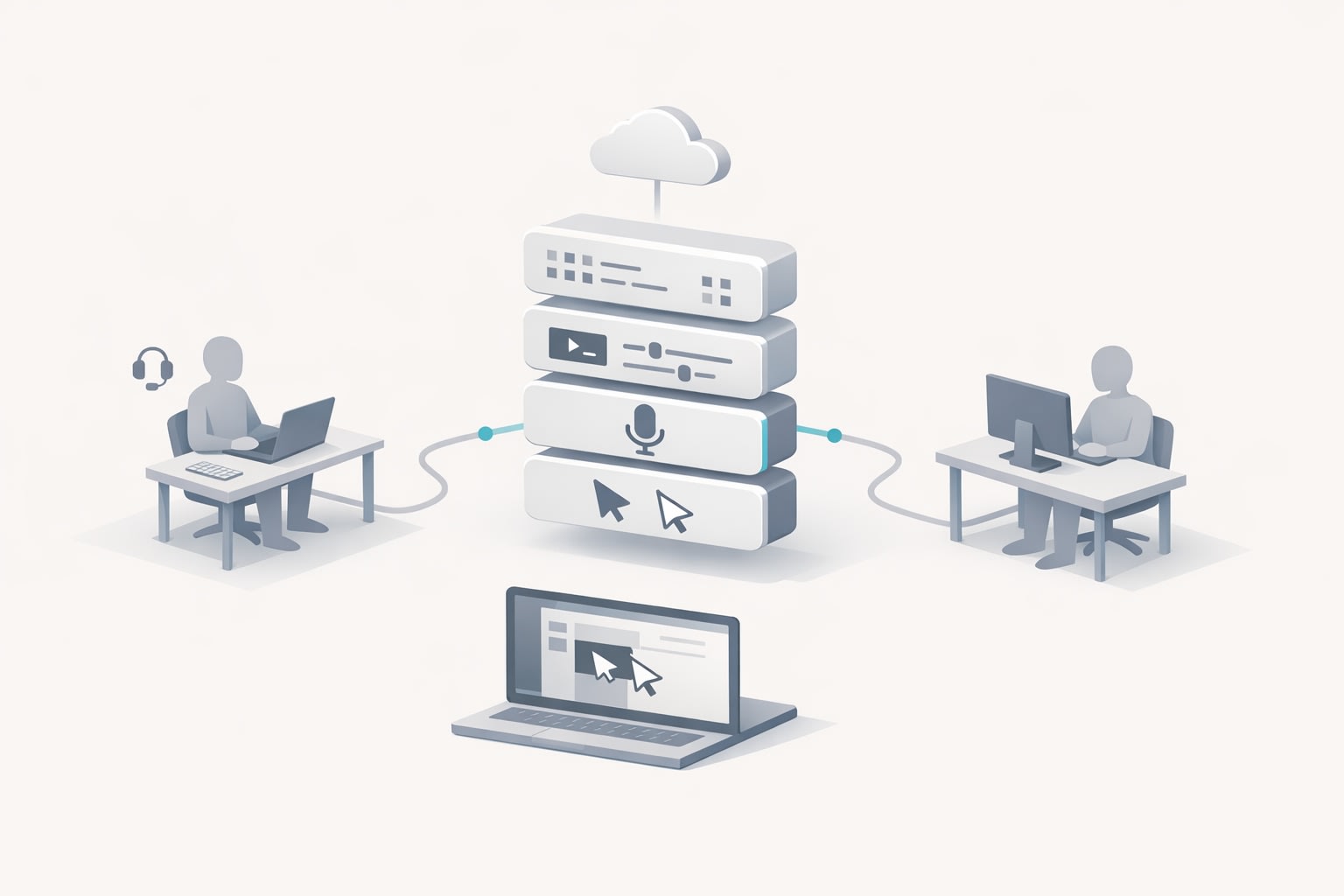
Remote pairing gets slower for reasons that have nothing to do with typing speed: hunting for meeting links, toggling screen share tools, re-granting permissions, repeating “can you drive?”, and stopping mid-thought to set up the call. A “shortcut stack” fixes that by turning pairing into a single, repeatable flow: hotkeys to start or join, role swaps without negotiation, and call triggers that quietly prepare your environment.
This article lays out a practical system you can implement in an afternoon: a minimal set of custom shortcuts, a role-swap protocol, and event-based automations that make your pairing sessions feel like sitting at the same machine.
What “shortcut stack” means in practice
A shortcut stack is not one shortcut. It’s a layered workflow where each layer removes a common micro-interruption:
- Call entry: start or join a session from wherever you already are (Slack, calendar, launcher, hotkey).
- In-call navigation: swap control, annotate, hide sensitive apps, and react without touching the mouse.
- Environment alignment: automatically pause distractions, set status, tag commits, and open the right context when the call starts.
Tuple is designed around these layers: razor-sharp screen sharing, snappy remote control, fast role swapping, fully customizable shortcuts, and a Triggers API that lets your tooling respond to call events. Used together, those features turn “setup” into muscle memory. For a primary reference point, see tuple.app.
Layer 1: entry shortcuts that eliminate the “how do we start?” moment
Start with one rule: pairing begins from the same place every time
Most teams have multiple entry paths (calendar link, Slack huddle, Zoom, meet link in an issue). The goal isn’t to ban variety—it’s to make one path frictionless and preferred. If your team already lives in Slack, a slash command-based entry is usually the lowest-friction default; if you live in calendar blocks, then joining from the calendar is the default.
Assign two “global” hotkeys you can hit without thinking
Keep the first layer intentionally small. Two global shortcuts are enough:
- Start/Join call: a single action that creates a session or joins the current one (depending on your team norm).
- Copy/share invite: one key sequence that puts the call link in your clipboard so you can drop it into Slack, an issue, or an email without breaking flow.
The point is predictability. When pairing is “one keystroke away,” you stop postponing it and you stop turning it into a scheduled ceremony.
Layer 2: in-call hotkeys that keep your hands on the keyboard
Design around the three moments that cause the most interruptions
In remote pairing, most context switching happens during:
- Role negotiation (“Can you drive? I need to show you something.”)
- Visual clarification (drawing attention to a line, a UI element, or a diagram)
- Privacy cleanup (closing tabs, hiding notifications, moving windows)
Hotkeys to standardize for every engineer
Pick a shared shortcut layout so pairs don’t have to relearn each other’s setup. At minimum, standardize:
- Role swap: the fastest possible way to switch who’s sharing/controlling.
- Remote control toggle: a clear “I’m taking control now” action, and an equally clear “I’m giving it back.”
- Annotate: quick marks or highlights to avoid verbal back-and-forth.
- App hiding/veil: a one-step way to prevent sensitive apps or notifications from appearing.
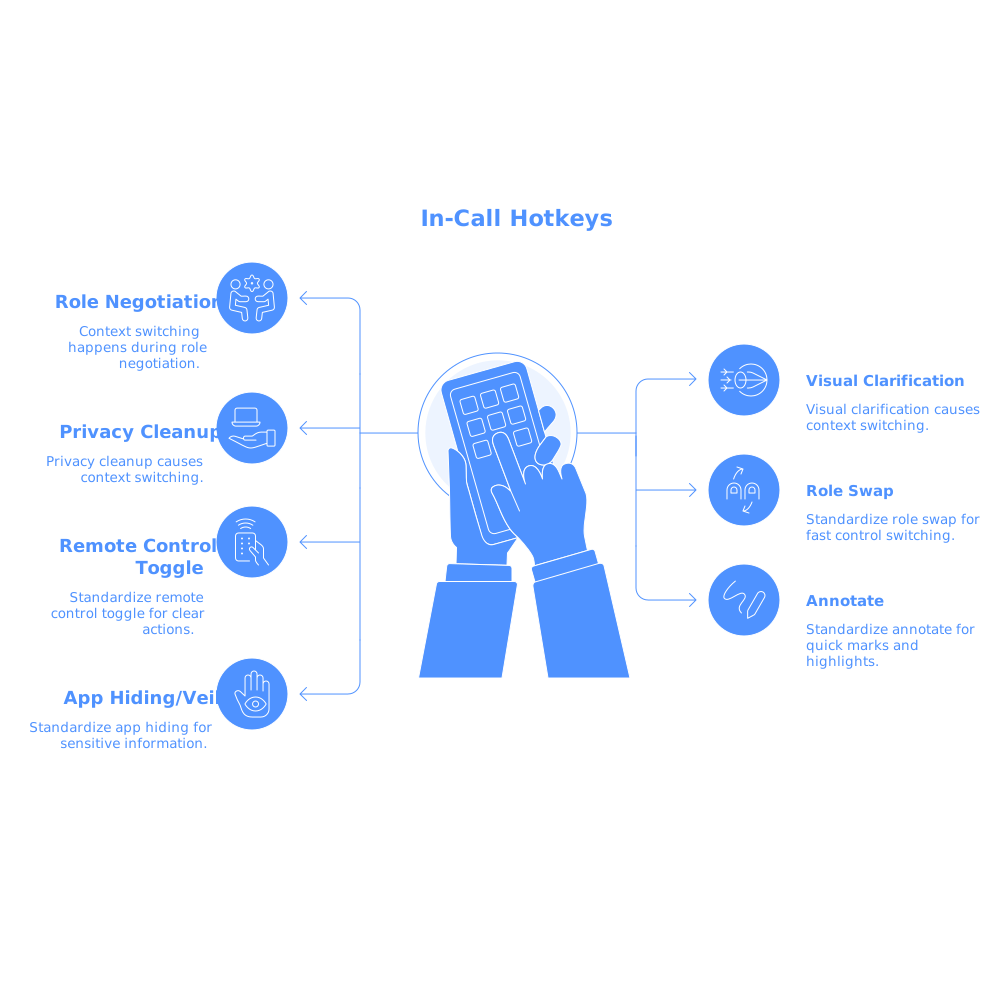
Tuple’s role swapping and keyboard shortcut customization are especially useful here because they remove the “tool friction” that makes teams fall back to talking instead of collaborating. Once you have stable hotkeys, you’ll notice the conversation shifts from navigation (“scroll up… no, the other file”) to intent (“this needs to be idempotent”).
Layer 3: role swaps as a protocol, not a favor
Teams often treat driving as a social handoff. That’s what causes the pause: asking, granting, waiting, then reorienting. Instead, make swaps procedural and frequent.
A simple swap cadence that works
- Swap on uncertainty: if the navigator is about to say “click there,” swap.
- Swap on ownership: whoever owns the next change drives, even if it’s just for two minutes.
- Swap on explanation: if you’re teaching a concept, drive; if you’re validating understanding, let the other person drive.
This turns swapping into a normal rhythm rather than an interruption. It also reduces the “silent queue” of unshared context—small clarifications that never happen because they feel too expensive to initiate. If your team struggles with bugs and requests piling up due to missing shared context, the pattern is similar to what’s described in The Silent Queue Problem: invisible work accumulates when communication paths have friction.
Layer 4: call triggers that prepare your environment automatically
Triggers are the difference between “we pair often” and “pairing feels effortless.” When the call starts, your environment should quietly get out of the way—no manual tab closing, no status fiddling, no “hold on while I…” detours.
Use call events to automate the boring setup
A practical baseline set of automations for a pairing call:
- Pause music or ambient audio when the call starts; resume it when the call ends.
- Set your status (Slack/Calendar) to indicate you’re pairing.
- Add a Git co-author marker when you begin a session so attribution stays accurate without extra work.
- Open the right context: bring up the repo, issue, or docs you typically use for pairing.
Tuple’s Triggers API is built for exactly this kind of “call lifecycle” automation: your tools respond to the session, not the other way around. The key design principle is restraint: automate only what you would do every time anyway.
Layer 5: keep the workflow robust when pairing frequency is irregular
Shortcut stacks decay when they’re rarely used: shortcuts get forgotten, automations break, and the team reverts to ad-hoc calls. If your pairing is bursty (for incident response, interviews, or occasional mentoring), you need the workflow to stay warm.
Make the stack self-checking
- One documented “golden path”: a short internal note that lists the two entry shortcuts and the swap shortcut.
- Quarterly 10-minute audit: verify permissions, remote control behavior, and that triggers still run.
- Use a repeatable pairing block: even if it’s biweekly, put it on the calendar so the muscle memory returns.
This is the same principle as keeping irregular systems from going stale. The pattern echoes what happens in outbound communication when sending is inconsistent: systems cool down, and restarting becomes harder than it should be. (If that’s a problem you recognize in another context, The low-volume trap captures the dynamics well.)
Put it together: a minimal “zero-switch” setup you can copy
If you want a concrete starting point, implement this minimal stack first, then iterate:
- Two global shortcuts: Start/Join call, Copy invite.
- Three in-call shortcuts: Role swap, Annotate, Toggle remote control.
- One privacy safeguard: a veil/hide action you trust.
- Three triggers: pause/resume music, set status, add co-author on session start.
Once those are stable, add only what removes a real interruption you can name. The goal isn’t a complicated setup—it’s a pairing experience that’s fast enough to use for the small stuff, not just the big sessions.